> ## Documentation Index
> Fetch the complete documentation index at: https://docs.kicks.dev/llms.txt
> Use this file to discover all available pages before exploring further.
# Pricing rules
> Plan your margins using our markup editor
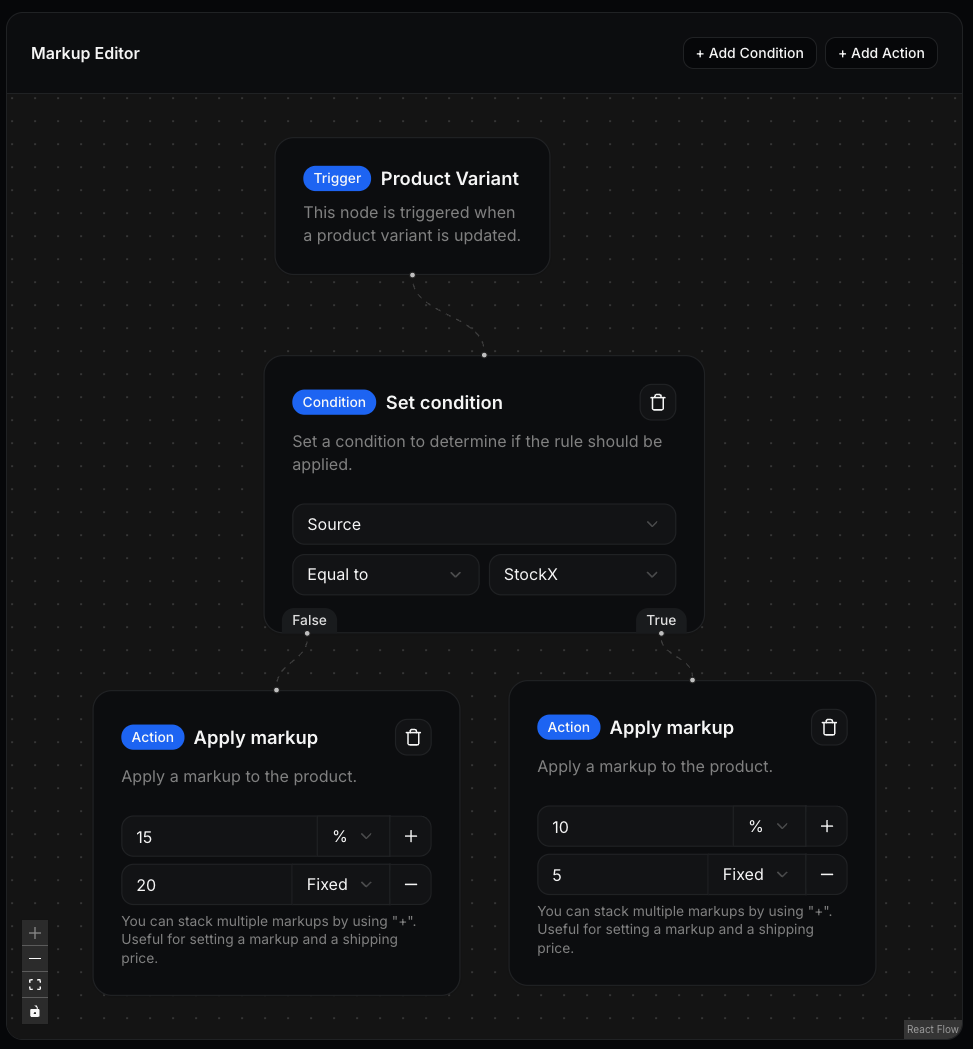 The markup editor lets you build pricing rules visually by connecting nodes. Each rule starts from a trigger, routes through optional conditions, and ends with an action that applies a markup to the base price fetched from StockX or GOAT.
## Node types
### Trigger
The entry point of every markup rule. Each rule has exactly one trigger node, and it cannot be deleted.
### Condition
Filters that control when a markup applies. Conditions can be stacked — all must be met for the flow to continue. You can filter on:
| Field | Description |
| :------- | :----------------------------------------------------------------------------------- |
| Source | The data source: StockX or GOAT |
| Price | The base price fetched from your source |
| Quantity | The available quantity. GOAT does not provide quantity data — it always reads as `1` |
### Action
Applies a markup on top of the base price. Multiple actions can be stacked — for example, combining a percentage margin with a fixed amount to cover shipping.
## Applying a markup rule
Markup rules can be assigned at two levels:
**Store level** — Set a default rule in your store settings. This applies automatically to any new products created on that store. Existing products are not affected.
**Product level** — Override the rule for a specific product by editing it directly. This takes precedence over the store-level default.
If you update a store's default rule, existing products will keep their
current rule. To update them, reassign the rule on each product individually.
The markup editor lets you build pricing rules visually by connecting nodes. Each rule starts from a trigger, routes through optional conditions, and ends with an action that applies a markup to the base price fetched from StockX or GOAT.
## Node types
### Trigger
The entry point of every markup rule. Each rule has exactly one trigger node, and it cannot be deleted.
### Condition
Filters that control when a markup applies. Conditions can be stacked — all must be met for the flow to continue. You can filter on:
| Field | Description |
| :------- | :----------------------------------------------------------------------------------- |
| Source | The data source: StockX or GOAT |
| Price | The base price fetched from your source |
| Quantity | The available quantity. GOAT does not provide quantity data — it always reads as `1` |
### Action
Applies a markup on top of the base price. Multiple actions can be stacked — for example, combining a percentage margin with a fixed amount to cover shipping.
## Applying a markup rule
Markup rules can be assigned at two levels:
**Store level** — Set a default rule in your store settings. This applies automatically to any new products created on that store. Existing products are not affected.
**Product level** — Override the rule for a specific product by editing it directly. This takes precedence over the store-level default.
If you update a store's default rule, existing products will keep their
current rule. To update them, reassign the rule on each product individually.