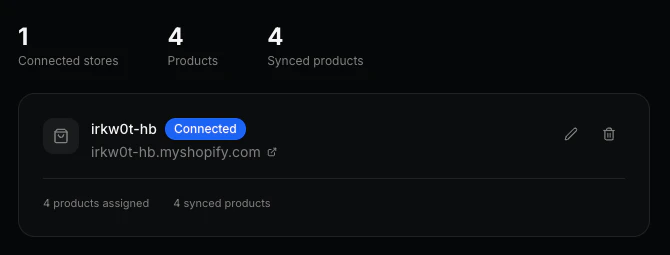
What’s included
Product Creation
Automatically create and publish products on your Shopify storefront using
data sourced from StockX or GOAT.
Price Synchronization
Keep prices up to date with a 15-minute refresh cycle, pulling live data
from StockX or GOAT.
Markup Management
Define dynamic margin rules using KicksDB’s node editor to control your
pricing strategy at scale.
Prerequisites
Before connecting your store, make sure you have:- A KicksDB account with access to the dashboard
- Admin access to your Shopify store
- Access to the Shopify Developer Dashboard to create a custom app
Connect your Shopify store
Step 1 — Create a custom app in Shopify
- Go to your Shopify Developer Dashboard and click Create App.
- Enter any app name (e.g.
kicksdb) and confirm. - In the App URL field, enter:
- Under Scopes, add the following permissions:
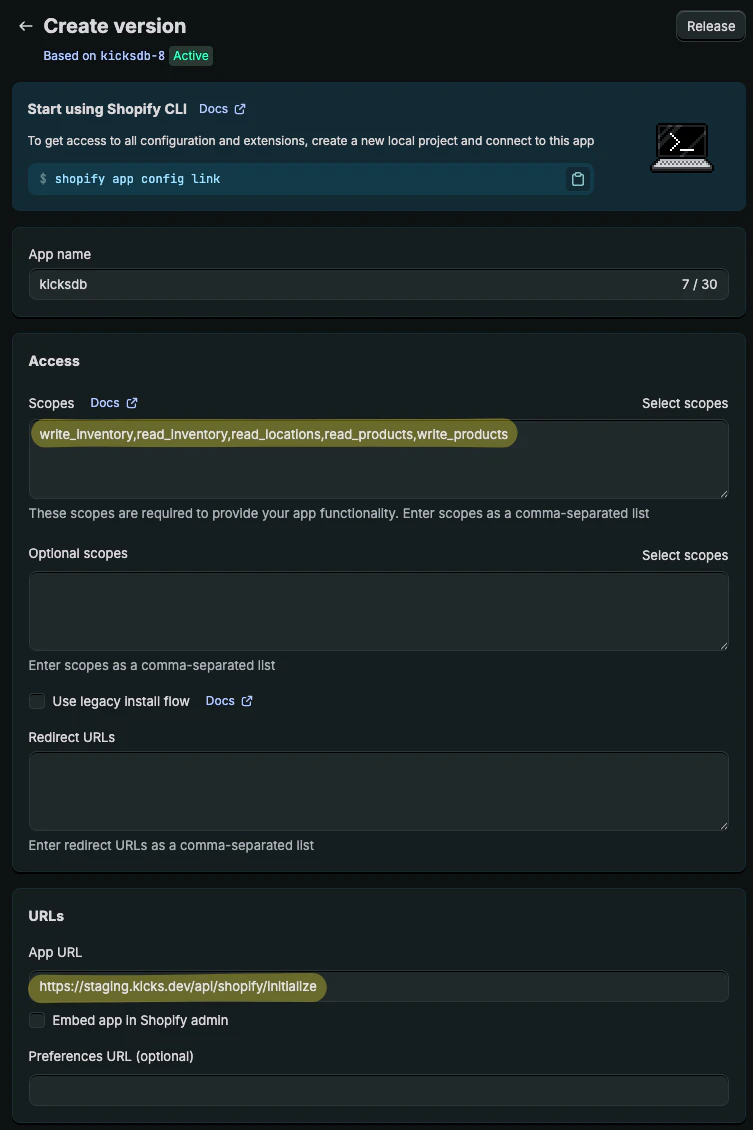
- Click Release to finalize the app.
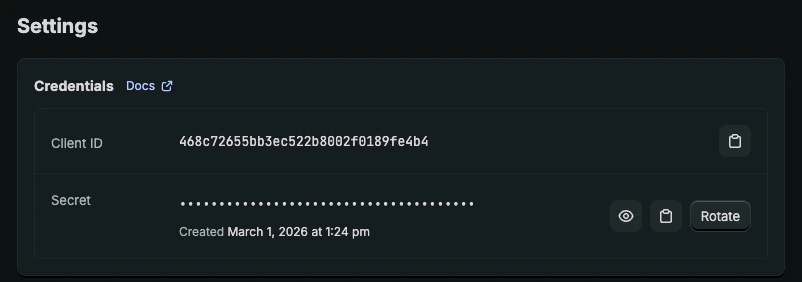
- Navigate to Settings — your Client ID and Secret will be listed there.
Step 2 — Connect the store in KicksDB
- Open your KicksDB dashboard and go to the Stores page.
- Click Connect store and fill in the form.
- For the Shop name, go to your Shopify Admin and copy the name from the URL:
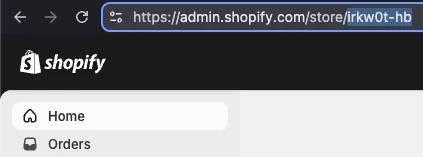
- Paste the Client ID and Secret from the previous step.
- Click Save, then click Install from KicksDB.